

One in four Americans have had their personal info compromised on public Wi‑Fi.
If you’re about to pull out a laptop at an airport gate or check email in a hotel lobby, pause.
Connecting makes your data visible to anyone with basic sniffing tools.
This post shows five immediate, two-minute steps you can take right after you connect.
Start with a VPN, check HTTPS, enable two-factor auth, avoid sensitive transactions, and lock sessions.
Do them before you type a password.
They keep your accounts, banking, and work files out of reach.
Immediate Protective Measures for Safe Use of Public Wi‑Fi While Traveling
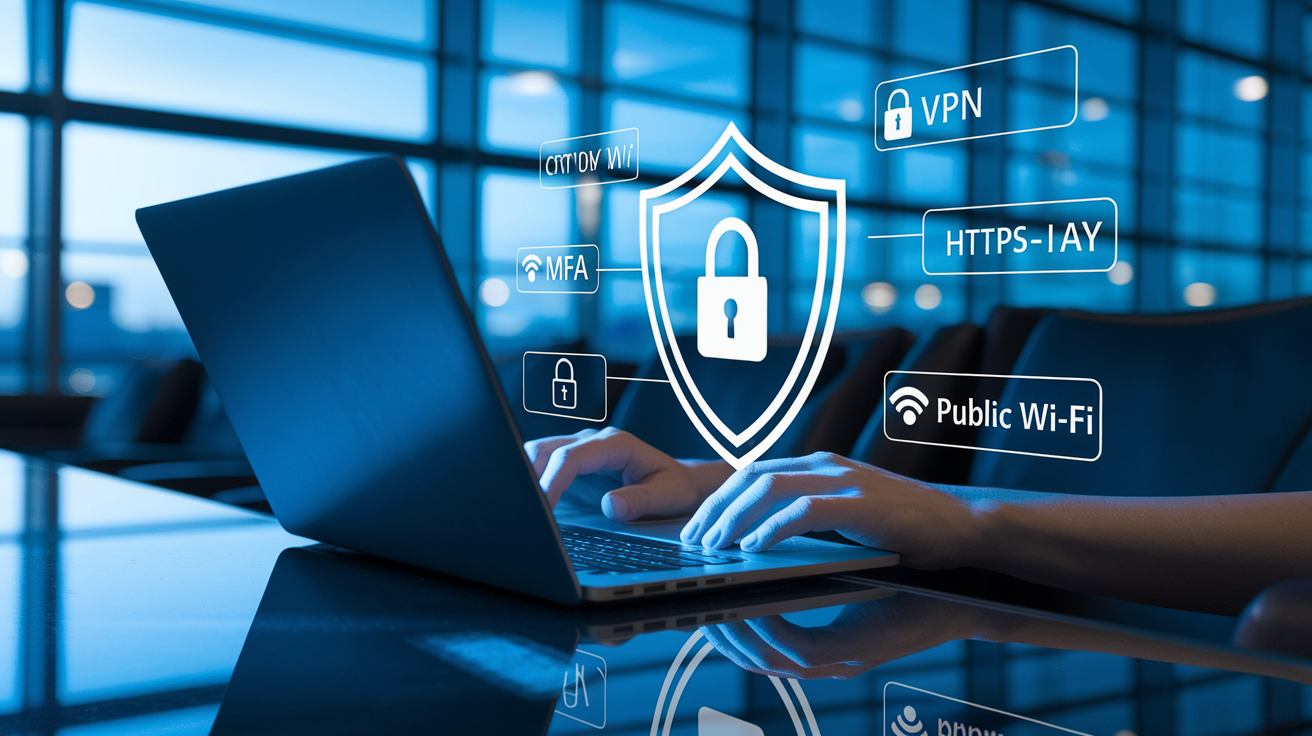
One in four Americans have had their personal info compromised on public Wi‑Fi. Nearly 40 percent of U.S. hotspots don’t have adequate security. Those aren’t encouraging numbers if you’re about to pull out your laptop at an airport gate or answer a quick email from a hotel lobby.
The second you connect to an unfamiliar network, your data becomes visible to anyone with basic packet‑sniffing tools. Attackers position themselves at high‑traffic spots to harvest credentials, session cookies, payment details. Waiting until you’re home to lock things down is way too late.
Real‑time protective measures are the only thing that works once you’ve already joined a public network. Unlike device updates or firewall settings you configured before the trip, these actions run alongside your browsing and keep traffic encrypted, accounts locked down, and sensitive data out of reach. Skip these steps and you’re exposing not just your inbox but banking apps, cloud storage, work systems, every password you type.
Secure behavior while connected starts with five immediate actions. Each takes less than two minutes.
-
Turn on your VPN before loading any website or app. A reputable paid VPN (ExpressVPN, NordVPN, ProtonVPN) encrypts all traffic between your device and the VPN server, making it unreadable to anyone monitoring the network. Confirm the VPN icon is active in your system tray or status bar before you do anything else.
-
Check every website for HTTPS and a valid padlock icon. Even with a VPN, verify that the address bar shows “https://” and a closed lock. If you see certificate warnings or mixed‑content alerts, don’t proceed. Those are red flags that traffic may be intercepted.
-
Enable two‑factor authentication on all critical accounts. Use an authenticator app (Google Authenticator, Authy, Microsoft Authenticator) instead of SMS. Even if a password gets stolen on public Wi‑Fi, MFA blocks unauthorized login from a new device.
-
Avoid sensitive transactions entirely. Don’t log into banking apps, file taxes, access payroll systems, buy cryptocurrency, or enter credit card numbers on public Wi‑Fi. If it’s urgent, switch to cellular data or tether through your phone’s personal hotspot.
-
Assume the network is actively monitored. Limit session duration, sign out after each task, and never save passwords in the browser when on public Wi‑Fi. Treat every keystroke as if someone’s watching.
Core Device Settings That Strengthen Cybersecurity on Travel Wi‑Fi

Device‑level configuration determines whether your phone or laptop broadcasts an open invitation to attackers or maintains a hardened perimeter while roaming between networks. Most travelers skip these settings entirely, trusting factory defaults that prioritize convenience over security. That works at home. It fails the moment you walk into an airport or café and your device auto‑connects to a rogue hotspot with a familiar name.
Disabling auto‑connect and sharing features before you leave prevents silent compromise. These changes take one to two hours if you update software at the same time, but once set they stay in place across the entire trip and can be reversed when you return.
Configure the following settings on every device you plan to travel with:
Disable auto‑connect to open or known networks. On iOS: Settings > Wi‑Fi > tap each saved network > turn off Auto‑Join. On Android: Settings > Network & Internet > Wi‑Fi > turn off “Connect to open networks” and remove saved public SSIDs. On Windows and macOS, forget all previously joined public networks before departure.
Turn off file and printer sharing. Windows: Control Panel > Network and Sharing Center > Change advanced sharing settings > turn off Network Discovery and File and Printer Sharing for Public networks. macOS: System Preferences > Sharing > uncheck File Sharing.
Update operating systems, browsers, apps, and firmware to the latest version. Enable automatic security updates where supported. Patch known vulnerabilities before connecting to hostile networks, not after an exploit has already run.
Enable the built‑in firewall. Windows Defender Firewall and macOS firewall (System Preferences > Security & Privacy > Firewall) should be active and set to block all incoming connections on public networks. Confirm third‑party security software is current too.
Set Bluetooth, AirDrop, and Nearby Share to off or “Contacts Only.” Wireless protocols expose additional attack surfaces. If you’re not actively pairing a device, disable Bluetooth entirely. AirDrop should be invisible to strangers, not set to “Everyone.”
Enforce strong screen lock and enable remote wipe. Use a passphrase or biometric lock with a timeout of two minutes or less. Configure Find My Device (iOS/Android) or Windows Find My Device to allow remote wipe if the device is lost or stolen while traveling.
How VPNs Improve Safety on Public Wi‑Fi for Travelers

Sixty‑eight percent of users don’t use a VPN on public Wi‑Fi. That means most travelers send unencrypted traffic across networks where attackers can read every byte in real time.
A VPN wraps all device traffic in an encrypted tunnel before it leaves your laptop or phone. Instead of exposing domain requests, login credentials, and session tokens to anyone with a Wi‑Fi adapter in promiscuous mode, the VPN routes everything through a remote server that decrypts and forwards it on your behalf. The public network sees only encrypted noise. Your browsing appears to originate from the VPN server’s location, not the airport or hotel.
VPN protection extends beyond eavesdropping. Man‑in‑the‑middle attacks rely on intercepting and modifying traffic as it passes through a compromised router. When a VPN is active, an attacker can still position themselves between your device and the router, but they can’t decrypt, read, or alter the payload. DNS spoofing attacks that redirect legitimate domain requests to phishing sites also fail, because the VPN tunnels DNS queries through its own encrypted resolver instead of trusting the public network’s DNS server.
For travelers, this means even a malicious hotspot can’t silently redirect you to a fake banking site or inject ads and malware into web pages.
Choosing a VPN is more than picking the first name in a search result. Free VPN services often log traffic, inject their own ads, or sell bandwidth to third parties. Paid providers with transparent privacy policies, independent audits, and a track record in the security community are worth the three to twelve dollars per month. Recommended options include ExpressVPN, NordVPN, and ProtonVPN, all of which offer apps for iOS, Android, Windows, and macOS, and support modern protocols that balance speed with strong encryption.
Selecting and Configuring a VPN for Travel
Install the VPN app on every device you’ll use on public Wi‑Fi, ideally a week before departure so you can test connectivity at home. Most providers allow five to ten simultaneous connections under a single subscription, covering phones, laptops, and tablets.
After installation, enable DNS leak protection and the kill switch in the app’s settings. DNS leak protection ensures that domain lookups stay inside the VPN tunnel instead of leaking to the local network. The kill switch blocks all internet traffic if the VPN connection drops, preventing a brief window where your device sends unencrypted packets before auto‑reconnect completes.
Set the VPN to auto‑connect whenever you join an unfamiliar Wi‑Fi network. Some apps detect public networks and prompt a connection. Others require you to enable “Always‑on VPN” in the device’s network settings. Choose a VPN server in a country with strong privacy laws if you’re accessing sensitive content, or select the geographically nearest server for better speed. Avoid servers in countries that restrict or ban VPN use, and be aware that some governments actively block VPN traffic at border routers.
Use WireGuard or OpenVPN protocols when available. WireGuard is faster and uses modern cryptography with a smaller code base, which reduces the chance of implementation flaws. OpenVPN is older but widely supported and well‑audited. Avoid PPTP and legacy protocols. They have known vulnerabilities and provide minimal real protection.
Test the VPN at home by visiting a DNS leak test site to confirm your real IP and DNS server are hidden, then repeat the test on the first public network you join during your trip.
Recognizing and Avoiding Dangerous Wi‑Fi Networks While Traveling
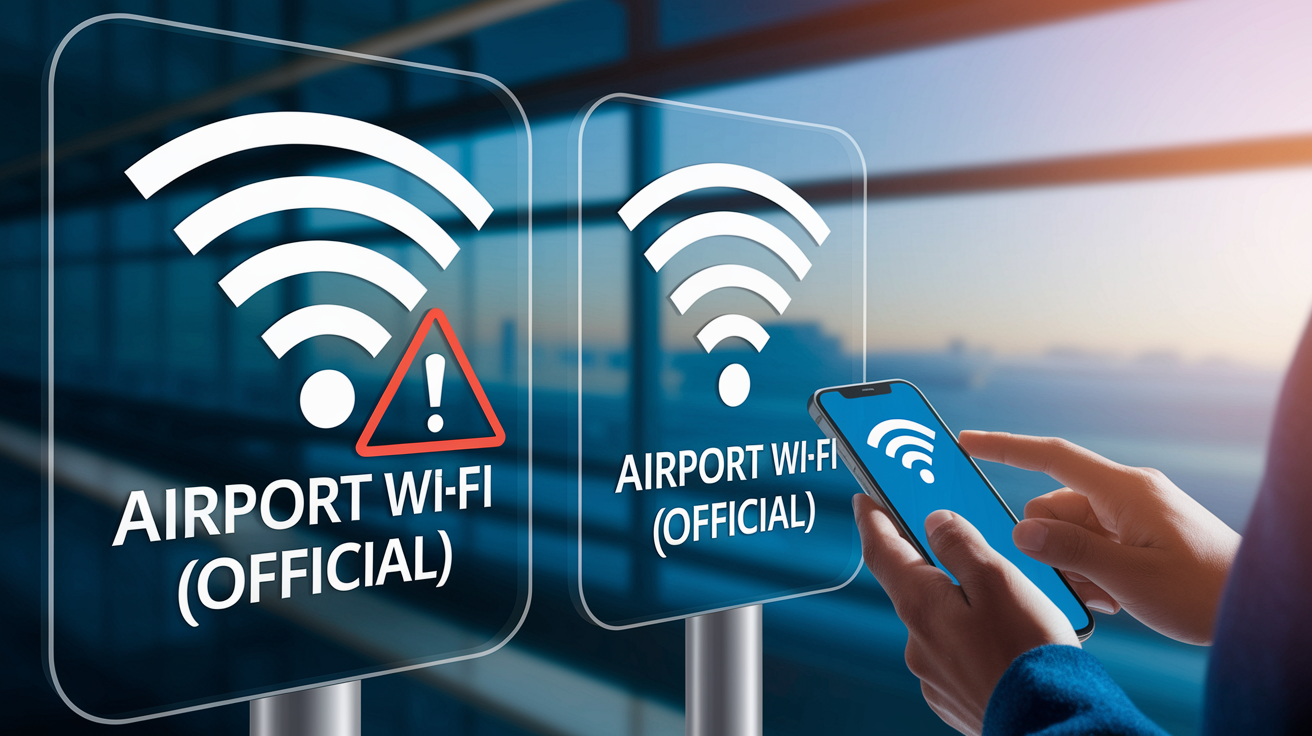
Attackers create rogue access points that mimic legitimate network names because most travelers will connect to any SSID that looks familiar. An “evil twin” hotspot copies the exact name of the airport’s official Wi‑Fi or a hotel’s branded network, then broadcasts a stronger signal to ensure your device prefers it over the real one.
Once connected, your traffic flows through the attacker’s router, where it can be logged, modified, or redirected to phishing sites that harvest credentials. The attack is invisible unless you know which signals to watch for.
Never trust an SSID simply because it matches the venue’s name or appears at the top of the available networks list. Signal strength and alphabetical sorting mean nothing. Attackers position themselves close to high‑traffic areas and name their hotspots to appear first. Ask staff for the exact network name, check posted signage, or look for official instructions on a receipt or guest portal. If two networks share the same name or include slight variations (extra numbers, spelling differences, added words like “Free” or “Guest”), assume both are unsafe and use cellular data instead.
Watch for these seven warning signs that indicate a network may be compromised or malicious:
Multiple SSIDs with nearly identical names, especially if they all show strong signal in a confined space. Legitimate venues rarely broadcast more than two or three networks.
Captive portals that request excessive personal information beyond an email address or room number. Asking for your home address, payment details, or social media login is a red flag.
Browser certificate warnings, HTTPS errors, or sudden downgrades from HTTPS to HTTP when loading familiar sites. These indicate traffic interception or an invalid SSL certificate presented by a man‑in‑the‑middle.
Frequent redirects to unfamiliar domains or unexpected software installation prompts. Legitimate networks never ask you to download a “network assistant” or install a configuration profile.
Extremely slow speeds or unusually chatty network traffic when you’re not actively browsing. Background data collection or malware scanning can saturate the connection.
Repeated authentication prompts or session timeouts that force you to re‑enter credentials. This behavior harvests passwords each time you reconnect.
Unfamiliar devices appearing in your Bluetooth or local network scan, or unexpected file‑share requests. Attackers probe for open shares and attempt lateral movement once you’re connected.
Using Personal Hotspots, Tethering, and Travel Routers as Safer Alternatives to Public Wi‑Fi
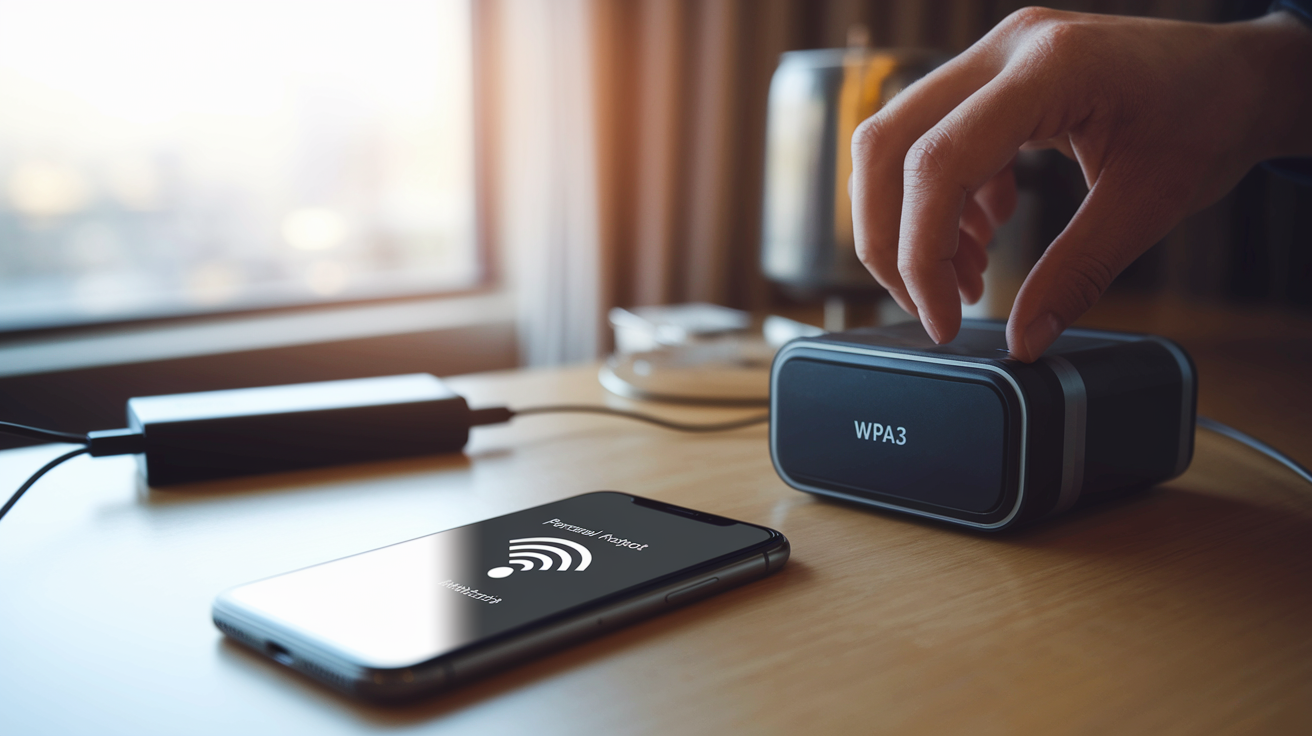
Your phone’s personal hotspot is almost always safer than any public Wi‑Fi network because you control the password, encryption standard, and list of connected devices. Cellular data routes through your carrier’s infrastructure, which is harder to intercept than an open airport router, and you can monitor exactly who’s using the connection in real time.
Tethering a laptop or tablet to your phone eliminates the need to trust hotel networks, café hotspots, or municipal Wi‑Fi. If your data plan includes sufficient bandwidth, it’s the simplest way to work securely while traveling.
Securing a personal hotspot starts with changing the default SSID and password before you leave. Factory defaults often include the phone’s brand, model, or your name, which reveals too much about the device and makes it a target for brute‑force attacks. Rename the hotspot to something generic and unidentifiable, then create a strong password with at least twelve characters mixing uppercase, lowercase, numbers, and symbols.
Enable WPA3 encryption if your phone supports it. If not, use WPA2. Never broadcast an open hotspot, even for convenience, and disable the “Allow others to join” setting when you’re not actively sharing the connection.
Five quick steps to lock down personal hotspots and travel routers:
Monitor connected devices in real time. Both iOS and Android show a list of active connections in the hotspot settings. If an unknown device appears, kick it off immediately and change the password.
Turn off the hotspot when you’re not using it. Broadcasting a Wi‑Fi signal drains battery and creates an unnecessary attack surface. Enable it only when you need to connect another device.
Use a portable battery pack to extend hotspot runtime. Tethering consumes significant power. Carrying a backup battery ensures you won’t lose connectivity mid‑session.
Check your carrier’s roaming and data policies before international travel. Some plans throttle hotspot speeds or charge extra for tethering abroad. Confirm costs to avoid surprise fees.
If using a dedicated travel router or MiFi device, update its firmware before departure. Outdated router firmware has known vulnerabilities. Many models allow remote management, so also change the default admin password to prevent unauthorized access.
Venue‑Specific Wi‑Fi Safety: Airports, Hotels, Cafes, Cruises, and Municipal Networks

Different locations present distinct Wi‑Fi risks. A one‑size approach won’t cover the range of threats travelers face. Airports concentrate hundreds of devices in a small area, hotels hand out network credentials to anyone with a room key, and cafes run consumer‑grade routers that rarely see security patches. Attackers know these patterns and tailor their methods to each venue.
Airports and Transit Hubs
Airport Wi‑Fi is a high‑value target because passenger volume is enormous, dwell time is predictable, and travelers routinely access email, work systems, and booking confirmations while waiting for flights. Attackers set up rogue access points near gates, charging stations, and lounges, often copying the airport’s official SSID character‑for‑character.
Always verify the network name with airport staff or posted signage before connecting, and assume any network that doesn’t require a click‑through terms‑of‑service page is suspicious.
Use a VPN the moment you connect, and avoid sensitive tasks entirely even with encryption active. If you must access banking or work email, switch to your phone’s cellular hotspot instead. Many airports also offer paid “premium” Wi‑Fi that promises faster speeds and better security. These networks are marginally safer but still public, so treat them with the same caution.
Turn off file sharing, forget the network as soon as you board, and never save the airport SSID for auto‑connect on future trips.
Hotels and Short‑Term Rentals
Hotel Wi‑Fi typically uses a shared password distributed to every guest, which means anyone in the building can join the same network and see other devices. Some properties provide in‑room routers or require you to authenticate with a room number and last name, both of which offer minimal real security.
If your room includes a physical router, log into its admin interface and change the default password immediately. Many brands ship with “admin/admin” credentials that are trivial to guess. After checkout, forget the hotel network on all devices to prevent auto‑reconnect if you return.
Short‑term rentals and vacation properties often use consumer routers with outdated firmware and weak passwords. Ask the host for the admin login and confirm the router is running current software, or bring your own travel router and connect it to the provided network as an additional layer of isolation. For extended stays, consider setting up a VPN on the router itself so all devices in the rental benefit from encrypted traffic without configuring each one individually.
Cafes, Cruise Ships, and Public Spaces
Café Wi‑Fi usually runs on consumer‑grade access points that prioritize coverage over security, and many shops never change the default router password or update firmware. Look for official signage with the network name and password. If the SSID isn’t posted, ask a staff member rather than guessing. Avoid cafes during peak hours when dozens of unknown devices share the same network, and never conduct banking or sensitive work from a café table.
Cruise ship and municipal Wi‑Fi networks suffer from slow speeds, high latency, and minimal security oversight. Cruise ships often charge by the minute or megabyte and route traffic through satellite links that add significant delay, making VPN performance inconsistent.
Municipal networks in parks, squares, and public transit stations are frequently open and unencrypted, with no authentication required to join. Treat these connections as completely hostile: use a VPN, avoid any login or payment activity, and switch to cellular data if the VPN fails to establish a stable tunnel.
Messaging, Passwords, and Account Security Habits for Public Wi‑Fi
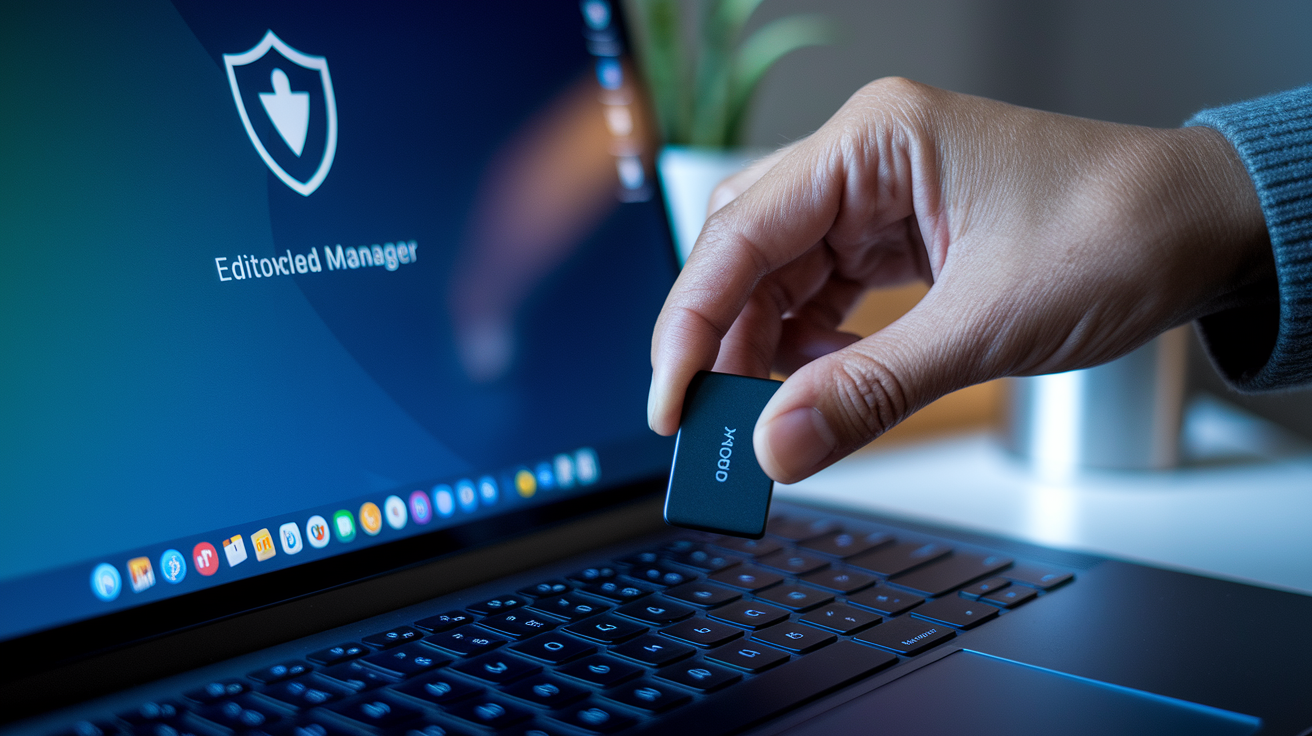
Messaging apps, email clients, and password‑entry fields are the primary surfaces where credentials leak on public Wi‑Fi. Even with HTTPS encryption, metadata like sender, recipient, and message timestamps can be visible to network operators, and poorly configured apps may fall back to unencrypted protocols if a secure connection fails.
Switching to end‑to‑end encrypted messaging and enforcing unique strong passwords across all accounts reduces the damage if one service is compromised during travel.
Password managers eliminate the need to type or remember credentials, which prevents keyloggers and shoulder surfers from capturing login details. Tools like Bitwarden (approximately ten dollars per year for premium), 1Password (around three dollars per month), or the free tier of LastPass generate random 12‑plus‑character passwords for each account and autofill them over encrypted connections.
Install the password manager app and browser extension before you travel, and confirm it syncs across your phone and laptop so you have access even if one device is lost.
Two‑factor authentication adds a second verification step that persists even if a password is stolen on public Wi‑Fi. Use authenticator apps (Google Authenticator, Authy, Microsoft Authenticator) instead of SMS codes, which can be intercepted via SIM swap or SS7 attacks. For maximum security, carry a hardware security key like a YubiKey (twenty to sixty dollars) that provides phishing‑resistant FIDO2 authentication.
Configure MFA on email, banking, cloud storage, social media, and any work accounts before departure, and store backup codes in your password manager in case you lose access to your phone.
Six recommended tools and habits for protecting messages, passwords, and accounts on public Wi‑Fi:
Use Signal for private messages and voice calls. It provides end‑to‑end encryption and doesn’t log metadata.
Enable disappearing messages or auto‑delete settings for sensitive conversations so nothing persists on the device if it’s lost.
Avoid email for confidential discussions while traveling. If you must send sensitive information, use encrypted email services like ProtonMail or Tutanota.
Log out of all accounts after each session instead of staying signed in, and revoke active sessions from unfamiliar IP addresses when you check account activity.
Review and revoke OAuth app permissions before travel. Third‑party apps with access to your Google or Microsoft account can leak data even if you never open them.
Change critical passwords (email, primary cloud storage, banking) immediately after returning home if you suspect any compromise occurred during the trip.
Protecting Devices Physically and Digitally While Connected to Public Wi‑Fi

Cybersecurity and physical security overlap when you’re working on public Wi‑Fi, because an attacker doesn’t need network access if they can see your screen, steal your device, or plug a malicious cable into an unlocked port.
The TSA has warned travelers against using public USB charging stations due to “juice jacking” attacks, where modified ports inject malware or copy data while the device charges. A compromised charging cable looks identical to a legitimate one but includes hidden electronics that exploit the data pins in the USB connector.
Carry your own charger, cable, and portable battery pack, and plug only into trusted AC outlets. If you must use a public USB port, insert a USB data blocker adapter (also called a “USB condom”) between the cable and the port. These adapters pass power but physically disconnect the data lines.
Avoid charging in airports, hotels, or cafes unless you control the entire chain from wall outlet to device, and never borrow a cable from a stranger or use one left behind at a charging station.
Wireless exposure extends beyond Wi‑Fi. Bluetooth, AirDrop, and Nearby Share broadcast presence and accept connection requests from nearby devices, and all three have known vulnerabilities that allow code execution or data exfiltration without user interaction. Turn off Bluetooth entirely when you’re not pairing a device, and set AirDrop to “Contacts Only” or disable it when traveling. Nearby Share on Android should also be off by default.
Use a privacy screen filter on laptops and tablets. Shoulder surfing is common in airports and cafes. A filter limits viewing angles so only someone directly in front of the screen can read it.
Enable automatic screen lock after two minutes of inactivity. Use a strong passphrase or biometric lock, and never leave a device unattended while logged into accounts.
Set up remote wipe capability on all devices before travel. iOS Find My, Android Find My Device, and Windows Find My Device allow you to erase a lost or stolen device from any web browser.
Avoid connecting unknown USB drives or accessories. Malicious USB sticks can deliver ransomware or keyloggers the moment they’re inserted, even if you never open a file.
How to Detect and Respond to a Public Wi‑Fi Cybersecurity Incident
Network compromise often starts with subtle signs that most travelers ignore: a slightly slower connection, a login page that looks almost right, or a certificate warning dismissed without a second thought. By the time you notice unauthorized charges or locked accounts, attackers have already exfiltrated credentials, session tokens, or payment data.
Detecting an incident while you’re still on the network gives you a narrow window to disconnect, revoke access, and limit damage before it spreads to other accounts.
Certificate errors and HTTPS warnings are the clearest indicators that traffic is being intercepted. If your browser shows a security alert when loading a site you’ve visited before, don’t click through or add an exception. Disconnect from the Wi‑Fi immediately and switch to cellular data.
Check the certificate details. If the issuer is unfamiliar or the domain name doesn’t match, a man‑in‑the‑middle attack is active. Duplicate SSIDs in the same location, especially if one has a stronger signal than the official network, also signal an evil‑twin hotspot attempting to capture traffic.
Other warning signs include unexpected redirects to unfamiliar domains, captive portals that reappear after you’ve already authenticated, and browser behavior that looks subtly wrong (missing HTTPS on sites that should be encrypted, ads injected into pages that don’t normally show them, or pop‑ups asking you to update software).
Unusually slow speeds when you’re the only user on a network can indicate that an attacker is running packet capture or malware scanning in the background. If your device suddenly prompts you to trust a new certificate authority or install a configuration profile, decline and disconnect.
If you suspect or confirm that a network is compromised, follow these nine steps immediately:
Disconnect from the Wi‑Fi and disable Wi‑Fi entirely on the device. Switch to cellular data or a trusted personal hotspot for all further actions.
Revoke active sessions on critical accounts. Log into email, banking, and cloud storage from a secure connection and sign out all other sessions. Most services show a list of active logins with timestamps and IP addresses.
Change passwords for any account accessed while on the compromised network. Start with your primary email account, then banking, payment apps, work systems, and social media. Use your password manager to generate new unique passwords.
Enable or reinforce two‑factor authentication if it wasn’t already active. This blocks attackers even if they captured your password.
Check bank and credit card statements for the past 48 to 72 hours. Look for unauthorized charges, foreign currency transactions, or small test charges that indicate a stolen card number is being validated.
Contact financial institutions immediately if you see suspicious activity. Freeze or cancel cards, dispute charges, and request replacement cards. Do this before attackers escalate to larger fraudulent purchases.
Run a full antivirus and malware scan on the affected device. Use updated signatures and scan all drives, not just quick checks. Remove any suspicious apps or browser extensions you don’t recognize.
Review OAuth app permissions and revoke access for unfamiliar or unused third‑party apps. Attackers sometimes use compromised accounts to install malicious OAuth apps that persist even after password changes.
Preserve evidence if possible. Note the SSID, time, location, and device behavior. Capture screenshots of certificate warnings or suspicious login prompts. If you’re traveling on business and using a work device, notify your IT or security team immediately so they can revoke credentials and reimage the device if needed.
Essential Travel Cybersecurity Checklist for Public Wi‑Fi Users
Consolidating every protective measure into a single reference lets you verify coverage before departure, maintain secure habits during the trip, and audit exposure after you return. This checklist organizes actions by phase and priority, so you can quickly confirm you haven’t missed a critical step.
| Step Category | Key Actions |
|---|---|
| Pre‑Trip | Update OS, apps, browser, and firmware on all devices. Install and configure a paid VPN. Set up password manager and sync across devices. Enable two‑factor authentication on all critical accounts. Back up important files to cloud and offline storage. Enable remote wipe and device tracking. Change default hotspot SSID and password. Charge portable battery pack. |
| Device Settings | Disable auto‑connect to open and known networks. Turn off file and printer sharing. Disable Bluetooth, AirDrop, and Nearby Share when not in use. Enable firewall on public network profile. Set screen lock to two minutes with strong passphrase or biometric. Confirm remote wipe is active. Forget all saved public Wi‑Fi networks before departure. |
| Network Selection | Verify exact SSID with staff or posted signage before connecting. Avoid networks with duplicate or similar names. Never join networks that don’t require any password or terms acceptance. Prefer cellular data or personal hotspot for sensitive tasks. Check for HTTPS and valid certificates on first page load after connecting. |
| On‑Network Behavior | Turn on VPN before loading any site or app. Verify VPN is active in system tray or status bar. Confirm HTTPS and padlock icon on every site. Avoid banking, payments, tax portals, and work systems on public Wi‑Fi. Sign out of accounts after each session. Don’t download software or accept certificate exceptions. Limit session duration and forget network when finished. |
| Emergency Response | Disconnect from Wi‑Fi immediately if you see certificate warnings, redirects, or duplicate SSIDs. Switch to cellular data. Revoke active sessions on email and financial accounts. Change passwords starting with primary email. Enable MFA if not already active. Check bank statements for past 48 to 72 hours. Run full malware scan. Contact card issuer to freeze or replace cards if fraud detected. Notify employer IT if using work device. |
| Post‑Trip Audit | Change passwords used during travel. Review account activity logs and active sessions for unfamiliar IPs or devices. Remove saved public Wi‑Fi networks. Run full antivirus and anti‑malware scan. Revoke OAuth app permissions that look unfamiliar. Check for OS and app updates released while traveling. Verify no unexpected charges on bank or credit statements. |
Final Words
When you connect to public Wi‑Fi, use the immediate protective steps: enable a VPN (an encrypted tunnel), check for HTTPS (secure websites), enforce MFA (two-factor authentication), avoid sensitive tasks, and stay alert.
Before travel, lock down device settings and pick a reliable VPN. Prefer personal hotspots or travel routers when possible, follow venue-specific tips, keep passwords and messaging secure, and know how to respond if something looks off.
Treat the travel cyber security tips for public Wi‑Fi checklist as a simple routine. You’ll travel smarter and with less stress.
FAQ
Q: What immediate protective measures should I take when I join public Wi‑Fi?
A: The immediate protective measures when joining public Wi‑Fi are to enable your VPN, confirm sites use HTTPS, enforce multi‑factor authentication, avoid banking or payments, and stay alert for redirects or odd prompts.
Q: Which device settings should I change before using public Wi‑Fi?
A: The device settings to change before using public Wi‑Fi are disable auto‑connect, turn off file/printer sharing and AirDrop/Nearby Share, install OS updates, and enable your device firewall.
Q: How does a VPN improve safety on public Wi‑Fi for travelers?
A: A VPN improves safety on public Wi‑Fi by encrypting your traffic, blocking eavesdropping and MITM attacks, preventing DNS spoofing, and offering DNS leak protection and kill‑switch features.
Q: How should I choose and configure a VPN for travel?
A: You should choose and configure a VPN by picking WireGuard or OpenVPN protocol, enabling DNS leak protection and a kill switch, using auto‑connect on trusted networks, and avoiding free VPNs.
Q: How can I recognize and avoid dangerous Wi‑Fi networks?
A: You can recognize dangerous Wi‑Fi networks by watching for duplicate or similar SSIDs, excessive captive‑portal requests, certificate errors or redirects, unexpected installs, and unusually slow or erratic behavior.
Q: Are personal hotspots and travel routers safer than public Wi‑Fi?
A: Personal hotspots and travel routers are safer when secured with a 12+ character WPA2/WPA3 password, renamed SSID, monitored connected devices, and travel router firmware updated before travel.
Q: What safety steps should I take at airports, hotels, cafes, and cruises?
A: Safety steps by venue include verify official SSIDs at airports, change hotel in‑room router defaults and forget networks after use, confirm cafe Wi‑Fi with staff, and avoid cruise or municipal networks for sensitive tasks.
Q: How should I manage messaging, passwords, and accounts on public Wi‑Fi?
A: You should manage messaging and passwords by using Signal for encrypted chats, a password manager for unique 12+ character passwords, and hardware or app‑based two‑factor authentication when possible.
Q: How do I protect my device physically and digitally while connected to public Wi‑Fi?
A: Protect your device by avoiding public USB charging (use a power bank or USB data blocker), enable screen lock and remote wipe, and turn off Bluetooth and sharing when not needed.
Q: What should I do if I suspect a public Wi‑Fi cybersecurity incident?
A: If you suspect a public Wi‑Fi incident, disconnect immediately, switch to cellular, revoke active sessions, change email and critical passwords first, run malware scans, monitor 48–72 hours of transactions, and freeze cards if needed.
Q: What is an essential travel cybersecurity checklist for public Wi‑Fi users?
A: The essential checklist includes pre‑trip updates and VPN setup, device hardening and backups, on‑network VPN always‑on and avoid sensitive tasks, and post‑trip password changes, network removal, and malware scans.